DHCP Server Configuration
Step 1: Open the cisco packet tracer desktop and add the devices shown below:
- PC-PT: 6
- Switch-PT: 2
- Router-PT: 1
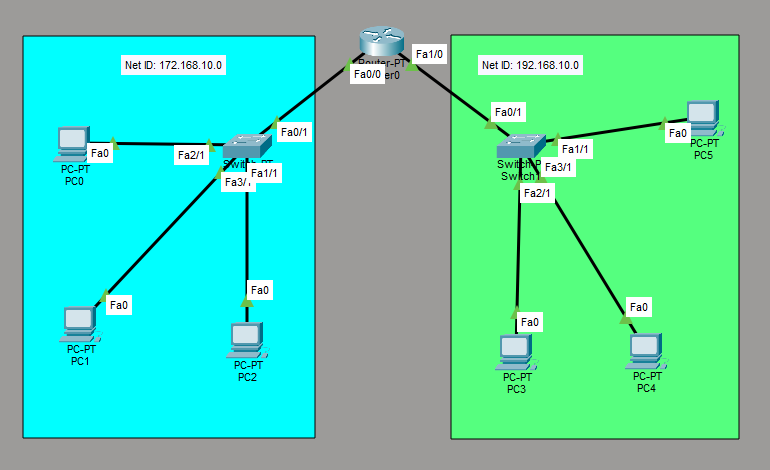
Step 2: Configuring Router with IPv4 Address and Subnet Mask.
IP Address Table for Router0:
- FastEthernet0/0:
- IPv4 Address: 172.168.10.1
- Subnet Mask: 255.255.255.0
- FastEthernet1/0:
- IPv4 Address: 192.168.10.1
- Subnet Mask: 255.255.255.0
FastEthernet0/0:
Would you like to enter the initial configuration dialog? [yes/no]: no
Router> enable
Router# conf t
Router(config)# interface fastethernet 0/0
Router(config-if)# ip address 172.168.10.1 255.255.255.0
Router(config-if)# no shutdown
Router(config-if)# exit
FastEthernet1/0:
Router(config)# interface fastethernet 1/0
Router(config-if)# ip address 192.168.10.1 255.255.255.0
Router(config-if)# no shutdown
Router(config-if)# exit
Step 3: Configuring DHCP on Router0.
Create a DHCP pool called Pool0DHCP with the following IP addresses for the network, default-router, and dns-server.
Router> enable
Router# conf t
Router0(config)#ip dhcp excluded-address 172.168.10.1 172.168.10.50
Router(config)#ip dhcp pool Pool0DHCP
Router(dhcp-config)#network 172.168.10.0 255.255.255.0
Router(dhcp-config)#default-router 172.168.10.1
Router(dhcp-config)#dns-server 172.168.10.1
Router(dhcp-config)#exit
Create another DHCP pool called Pool1DHCP with the following IP addresses for the network, default-router, and dns-server.
Router0(config)#ip dhcp excluded-address 192.168.10.1 192.168.10.50
Router(config)#ip dhcp pool Pool1DHCP
Router(dhcp-config)#network 192.168.10.0 255.255.255.0
Router(dhcp-config)#default-router 192.168.10.1
Router(dhcp-config)#dns-server 192.168.10.1
Router(dhcp-config)#exit
Step 4: Configuring the PCs and changing the IP configuration.
- To assign an IP address in PC0, click on PC0.
- Go to "Desktop" -> "IP configuration" and you will find the IPv4 configuration.
- Change its state from static to DHCP.
- It should automatically fetch the data and configure itself.
- Repeat the same steps with the other PCs.